

Google Vertex AI
Use Gemini, Claude and open models from your own Google Cloud project, with every call going through Forgebench's budgets, metering and tracing.
You bring the Google Cloud project; Google bills it directly. Forgebench never serves Vertex AI on its own account.
How it works
You give Forgebench one way to authenticate to your project. On each request, Forgebench attaches it and calls Vertex AI for you. Your code only ever holds a Forgebench API key.
- Vertex models are named
vertex-<model>, for examplevertex-gemini-2.5-flash. - Forgebench calls the
globallocation. A model that isn't served atglobalreturns404. - Every call comes from one egress IP,
13.207.123.116, which you can allowlist.
Choose how to connect
| Method | Models | What you give Forgebench |
|---|---|---|
| Service account key | All | A service-account JSON key |
| Express API key | Gemini, and open models such as Llama. Not Claude. | An API key, plus a project ID for open models |
| Workload Identity Federation | All | A configuration file that contains no secret |
- Service account key is the usual choice: it covers every model and takes a few minutes.
- Express API key is the quickest way to try Gemini, but Google doesn't accept API keys for Claude.
- Workload Identity Federation avoids long-lived keys entirely. Use it if your organization disallows them. It needs an Enterprise workspace, because we create an AWS role dedicated to your workspace.
All three are added in the same place: API Keys → Credentials → Add credential (or Admin → Secrets), then Vertex AI. You need the admin role.
Service account key
Enable Vertex AI and your models
In your project, enable the Vertex AI API. Gemini works straight away. For partner models such as Claude, open each one in Model Garden and click Enable.
Create a service account
For example
forgebench-vertex@<your-project>.iam.gserviceaccount.com. Grant it Vertex AI User (roles/aiplatform.user) and nothing else.Create a JSON key
On the service account's Keys tab, add a JSON key and download it. If your organization blocks key creation (
iam.disableServiceAccountKeyCreation), request an exception for this project or use Workload Identity Federation.Add it to Forgebench
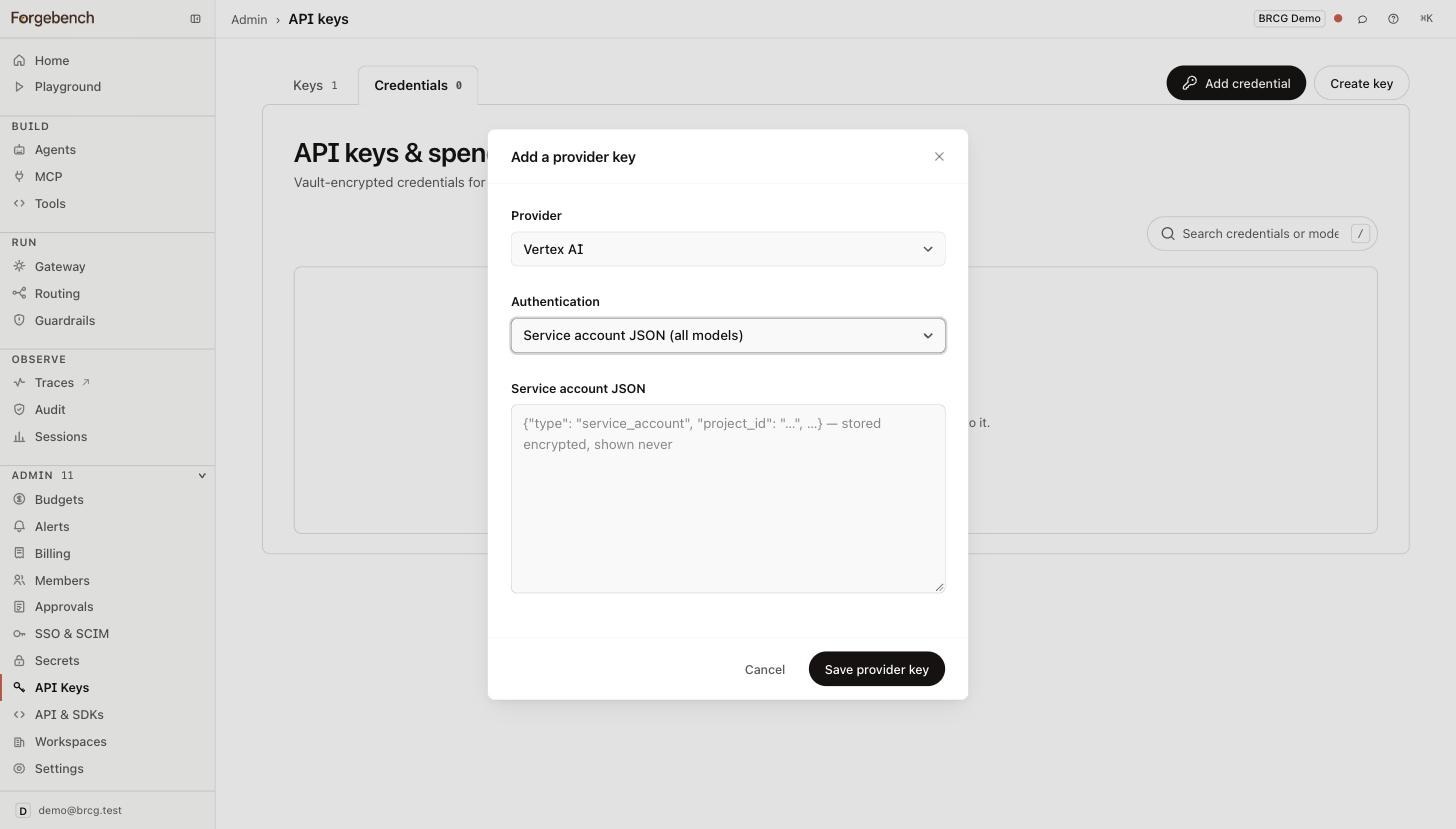
Choose Vertex AI, set Authentication to Service account JSON (all models), paste the whole file and choose Save provider key. The key is encrypted at rest and never shown again.
Express API key
Create a key
In the Google Cloud console, create an API key for Vertex AI in your project.
Add it to Forgebench
Choose Vertex AI, leave Authentication on Express API key, and paste the key. To use open models such as Llama, DeepSeek or Qwen, also enter your Project ID. Gemini doesn't need it.
Workload Identity Federation
Your project trusts one AWS IAM role, and Forgebench runs your workspace's gateway as that role. On each call the gateway proves its identity to Google and gets back a token that expires within the hour. There is no key to store, leak or rotate.
The role belongs to your workspace alone and has no AWS permissions. Only your workspace's gateway can assume it.
Ask us for your role
Contact Forgebench support. We'll create the role and send you its ARN, our AWS account ID, and a setup guide with your values filled in.
Enable Vertex AI and your models
The same as for a service account: enable the Vertex AI API, and enable partner models in Model Garden.
Create a pool and an AWS provider
Create a workload identity pool, then an AWS provider in it for our account ID. Restrict the provider to your role with this attribute condition:
attribute.aws_role == "arn:aws:sts::<account id>:assumed-role/<role name>"Grant Vertex AI User
Grant
roles/aiplatform.useron the project toprincipalSet://iam.googleapis.com/projects/<project number>/locations/global/workloadIdentityPools/<pool>/attribute.aws_role/arn:aws:sts::<account id>:assumed-role/<role name>.Create the configuration file
Run
gcloud iam workload-identity-pools create-cred-configwith--awsfor your provider. The file names your pool and provider and contains no secret.Add it to Forgebench
Choose Vertex AI, set Authentication to Workload Identity Federation (all models, no key), paste the file, enter your project ID and choose Save provider key.
To cut off access, remove the Vertex AI User grant in Google Cloud. Calls fail within about two minutes. Disabling the provider only blocks new token exchanges; tokens already issued keep working for up to an hour.
Send a test request
Saving a credential only checks its format. Google accepts or rejects it on the first request, so send one straight away:
curl -X POST https://api.forgebench.ai/v1/chat/completions \
-H "Authorization: Bearer sk_..." \
-H "Content-Type: application/json" \
-d '{
  "model": "vertex-gemini-2.5-flash",
  "messages": [{"role": "user", "content": "ping"}]
}'
from forgebench import Forgebench
client = Forgebench(api_key="sk_...", base_url="https://api.forgebench.ai")
resp = client.chat.completions.create(
model="vertex-gemini-2.5-flash",
messages=[{"role": "user", "content": "ping"}],
)import { Forgebench } from "@seedlinglabs/forgebench-sdk";
const forgebench = new Forgebench({ baseUrl: "https://api.forgebench.ai", apiKey: "sk_..." });
const res = await forgebench.chat.create({
model: "vertex-gemini-2.5-flash",
messages: [{ role: "user", content: "ping" }],
});A 200 with a completion means you're connected. If not, see
Troubleshooting.
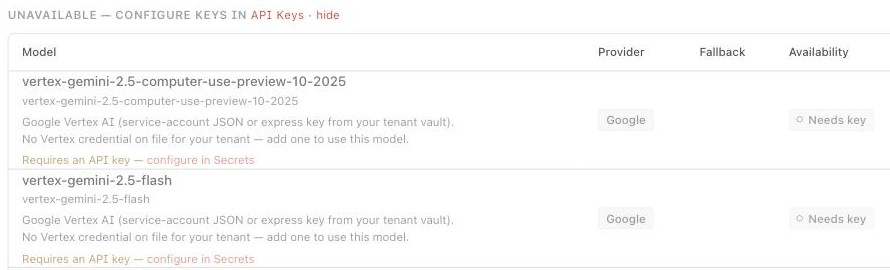
The Gateway catalog lists every Vertex model. Until you add a credential they show as Needs key.
Restrict access with VPC Service Controls
Optional. A VPC Service Controls perimeter makes your project refuse Vertex AI calls unless they come from Forgebench's egress IP and from the identity you gave Forgebench. You'll need an organization-level Google Cloud admin.
| Setting | Value |
|---|---|
| Egress IP | 13.207.123.116/32 |
| Protocol | HTTPS (TCP 443) |
We'll tell your workspace admin before this address changes.
Create an access level
In Access Context Manager, create an access level for the IP subnetwork
13.207.123.116/32.Create a perimeter in dry-run mode
Put your project in a perimeter that restricts
aiplatform.googleapis.com. Start it in dry-run mode, so it only logs what it would block.Add an ingress rule
Allow Vertex AI calls from that access level by your Forgebench identity only: the service account for a key, or the
principalSet://…member from the Workload Identity Federation steps.Test, then enforce
Send a test request, check the audit logs show no violation for it, then enforce the perimeter. A new perimeter can take up to 30 minutes to start blocking.
The IP is shared by every Forgebench customer, so it shows a call came from Forgebench, not which workspace sent it. The ingress rule's identity is what limits access to your workspace. That's why the rule needs both.
Troubleshooting
| Error | Cause | Fix |
|---|---|---|
404 publisher model "was not found or your project does not have access to it" | The model isn't enabled in your project, or isn't served at global | Enable it in Model Garden, or choose a model served at global |
| Claude fails with an express API key | Google doesn't accept API keys for Claude | Use a service account key or Workload Identity Federation |
403 VPC_SERVICE_CONTROLS | The access level doesn't include our IP, or the ingress rule names a different identity | Check both. The error's vpcServiceControlsUniqueIdentifier finds the matching audit log entry. |
| Calls from other IPs still succeed | The perimeter isn't enforced yet | Wait up to 30 minutes after enforcing, then test again |
403 from sts.googleapis.com (Workload Identity Federation) | The provider's account ID or attribute condition doesn't match your role | Copy the role exactly as we sent it, including sts and assumed-role |
403 "Permission 'aiplatform.endpoints.predict' denied" (Workload Identity Federation) | Vertex AI User isn't granted to the principalSet://… member, or hasn't propagated | Grant it, then allow a few minutes |
| Saving says the key belongs to a different Forgebench organization | Someone else has added the same key, so it may have leaked | Rotate it in Google Cloud and add the new key |